
Our intuitive builder allows you to assemble your pages using customizable blocks. Follow these steps to start designing your content.
Adding blocks to your page
To start building your content:
-
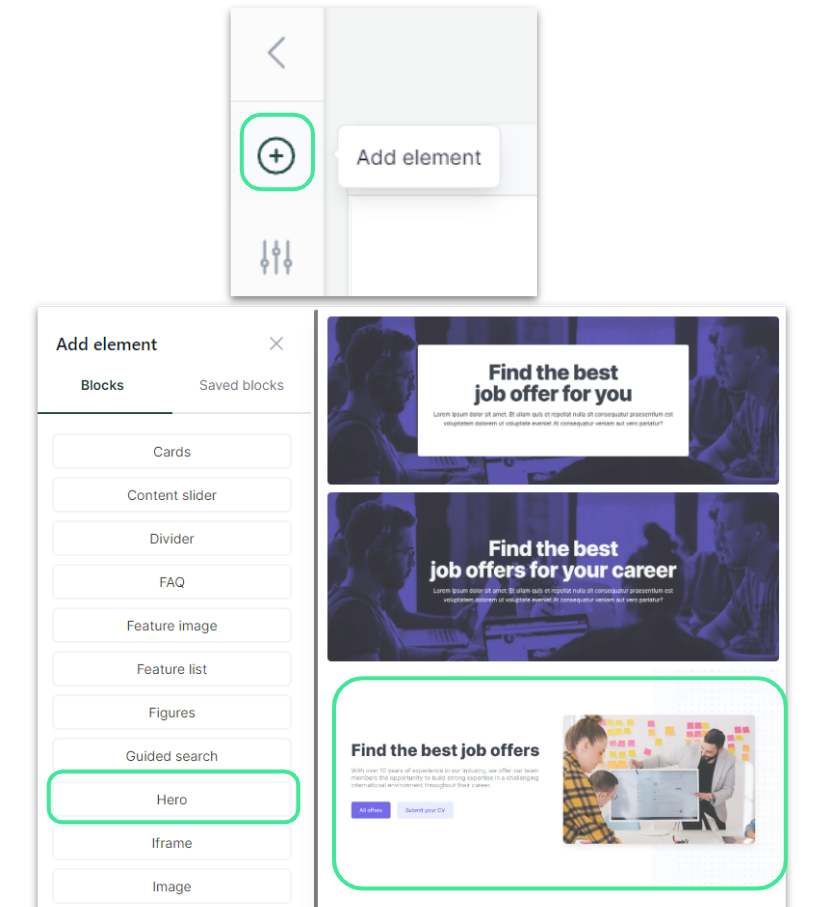
Click the "+" icon and select "Add element" at the top left of the screen.
-
Browse the list of blocks; the available templates for each will appear on the right.
-
Simply click on your chosen template to add it to your page.
Managing your blocks
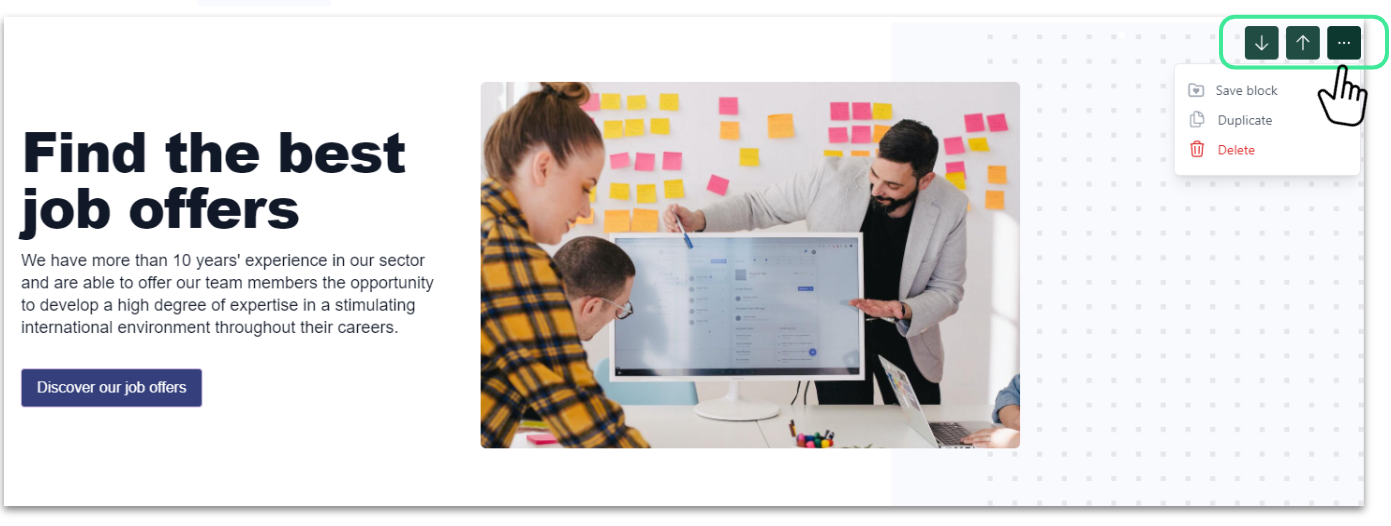
When you hover over a block, icons will appear in the top-right corner, allowing you to:
-
Move: Change the block's position on the page.
-
Save: Save the block and its settings to reuse it later. You can find these in the "Saved blocks" section of the "Add item" menu.
-
Duplicate: Create an exact copy of the block.
-
Delete: Remove the block from your page.
Block Customization (Editing)
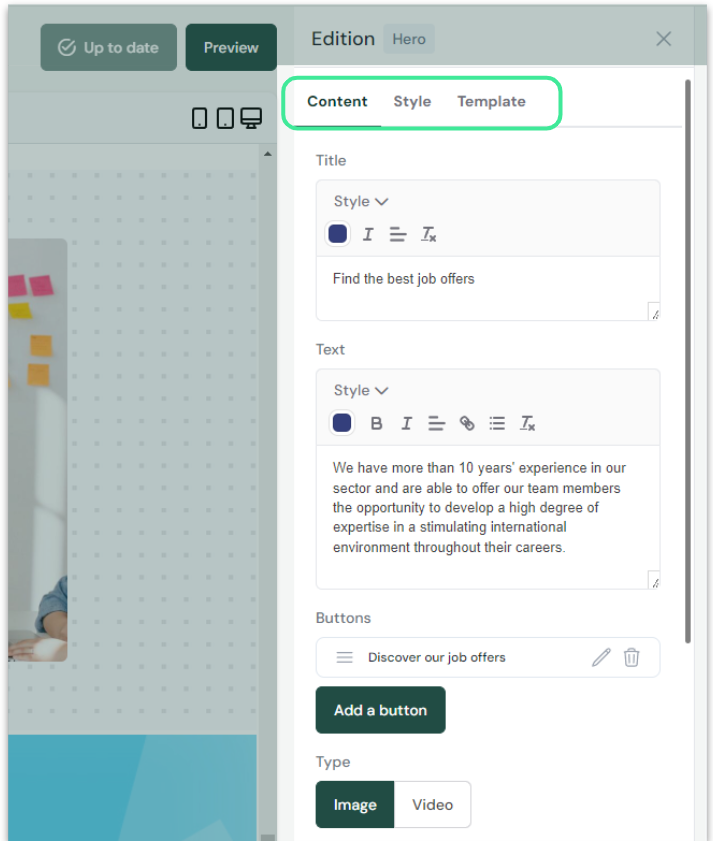
Click on a block to open the edition panel, where you can customize:
-
Content: Edit text (position, color) and buttons (text and redirect URL).
-
Style: Choose a background (image, video, or solid color) and adjust the layout of elements.
-
Template: Swap the current template for any other available design within the same block category.
Good to know: We recommend exploring all blocks, as customization options vary depending on the type of element you are editing.
Preview and Saving
-
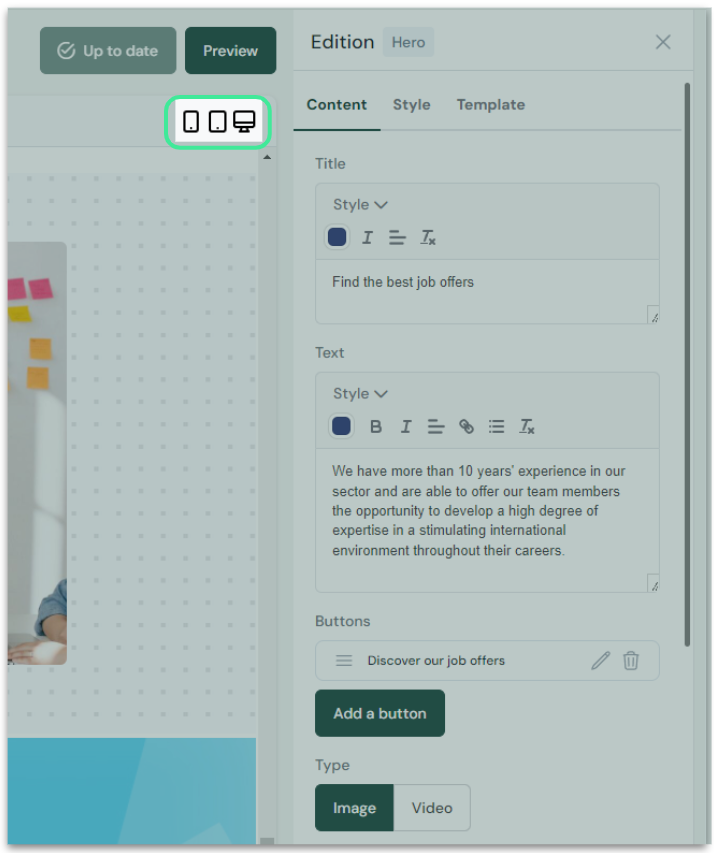
Display: You can toggle between different device views (mobile, tablet, desktop) at any time to see how your changes look.
-
Saving your work: Always click the Save button at the top right to ensure your progress is secured.
-
Auto-save: The CMS automatically saves your changes as soon as you close the editing menu.
Good to know: If you want to experiment with a new design without affecting your live site, duplicate your original page. You can edit and save the copy as a Draft without publishing it, then decide which version to keep later.