Talent Messaging
You want to contact your talents directly from CMS? Here is a comprehensive guide on how you can do that.
Before you send your first email to a talent, we recommend you to set up your own signature.
This is not necessary to send emails, but will make your messages look more professional.
|
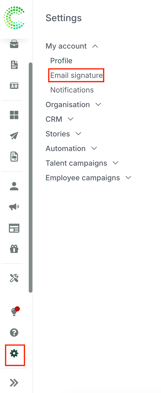
You can find the Email signature tab under the following path:
|
![]() |
|
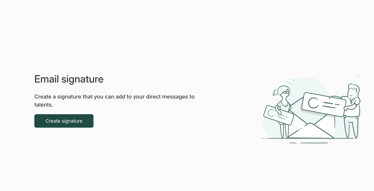
Click on "Create signature" to create a new one. If you already have a signature saved you will see it here. To edit the signature, click the pen symbol beside it. |
![]() |
|
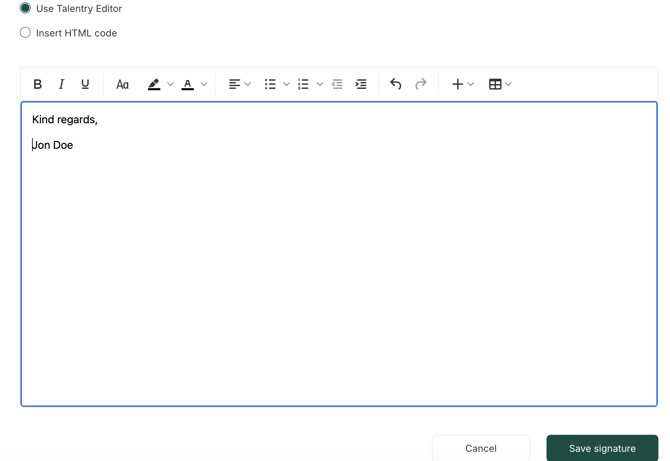
From here on you have the choice to use our editor, or insert an HTML code to customise your signature. When you are done, click "Save signature" on the bottom right.
|
![]() |
|
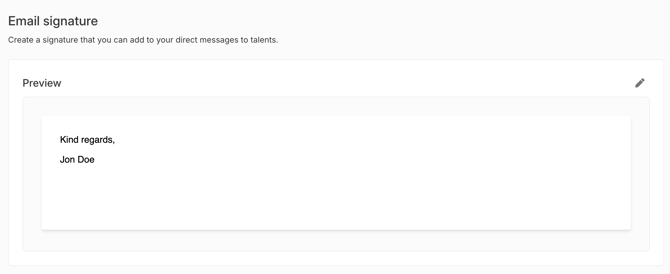
You can now preview your signature. If you are not happy with the signature you go back to the editor by clicking on the pen icon. |
![]() |
After you have set up your signature you can start your communication with your talents.
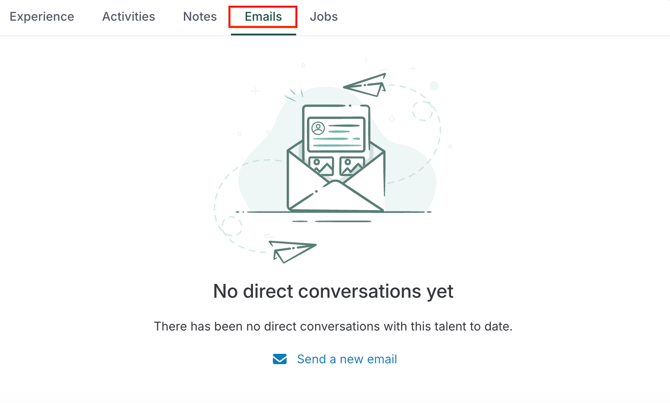
When you open any of your talent profiles, you will now see the "Emails" tab. Here you can start a new conversation by clicking on "Send a new email”.
|
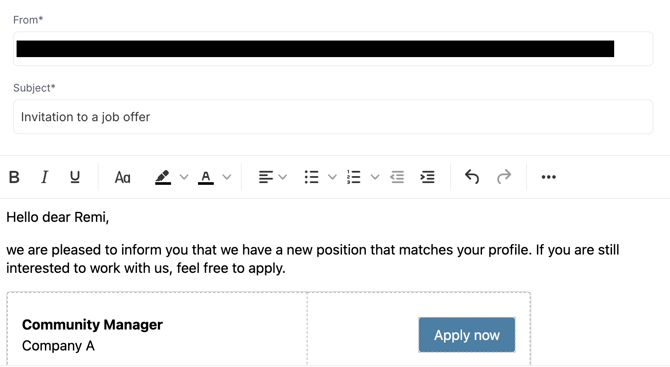
From here on you can create your Email. The layout is the same as any typical Email creator. Before sending an Email you will always have to fill out two components.
If any of those have no entries, the "Send"-button will be grey and you cannot send out the Email. |
![]() |
|
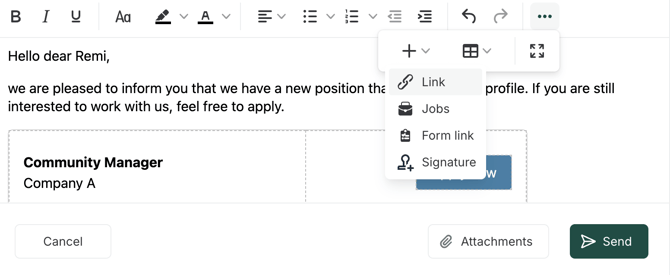
When clicking the three dots on the top-right, you can use the “Insert” menu to directly add any jobs, links or forms to your message. If you have previously created a signature, you can add it from this tab as well. |
![]() |
|
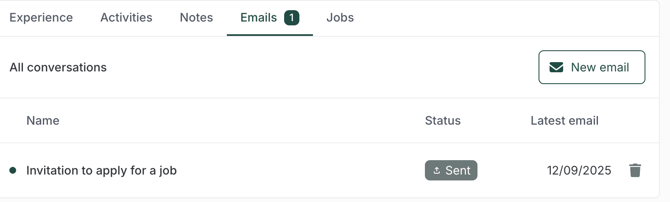
After you have send an Email, you will have this overview where you can:
|
![]() |
|
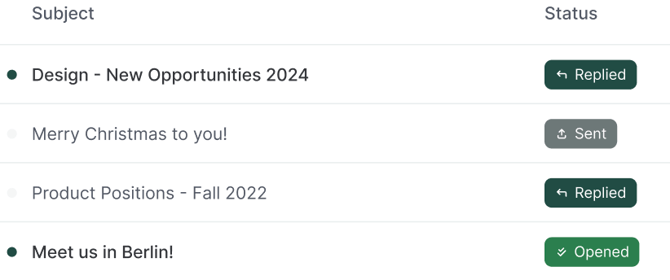
There are three different statuses for Emails.
|
![]() |
Frequently Asked Questions
- Who can see these emails? The emails are visible to all recruiter admins, super recruiters, recruiters and soon also to hiring managers with extended rights who have access to the talent profile. Any user with these roles who can see the talent profile can send an email.
- Can I forward these emails to my Outlook/Gmail? Not at this time. All communication is optimized to happen within the platform to keep data secure and centralized.
- Why can't I edit the "From" email address, and why does it look technical? We use a unique, system-generated email address containing a secure token for every conversation. This allows us to route the talent's reply directly back to this specific thread in the CRM. Rest assured, the talent will primarily see your First and Last Name as the sender in their inbox, ensuring the communication remains personal and professional.