
In this tab, you can configure all the buttons you want to use on your site.
It is important to set these up as soon as you create your site.
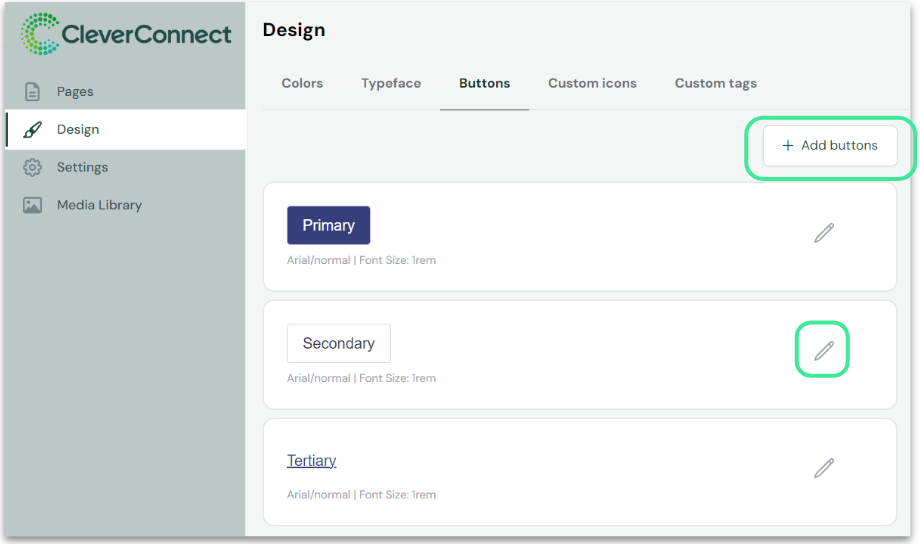
Three types of buttons are set by default:
-
Primary
-
Secondary
-
Tertiary
Good to know: These three default buttons cannot be deleted, and their names cannot be changed.
When you click on "Add buttons" or on the pencil icon to edit, a control panel appears.
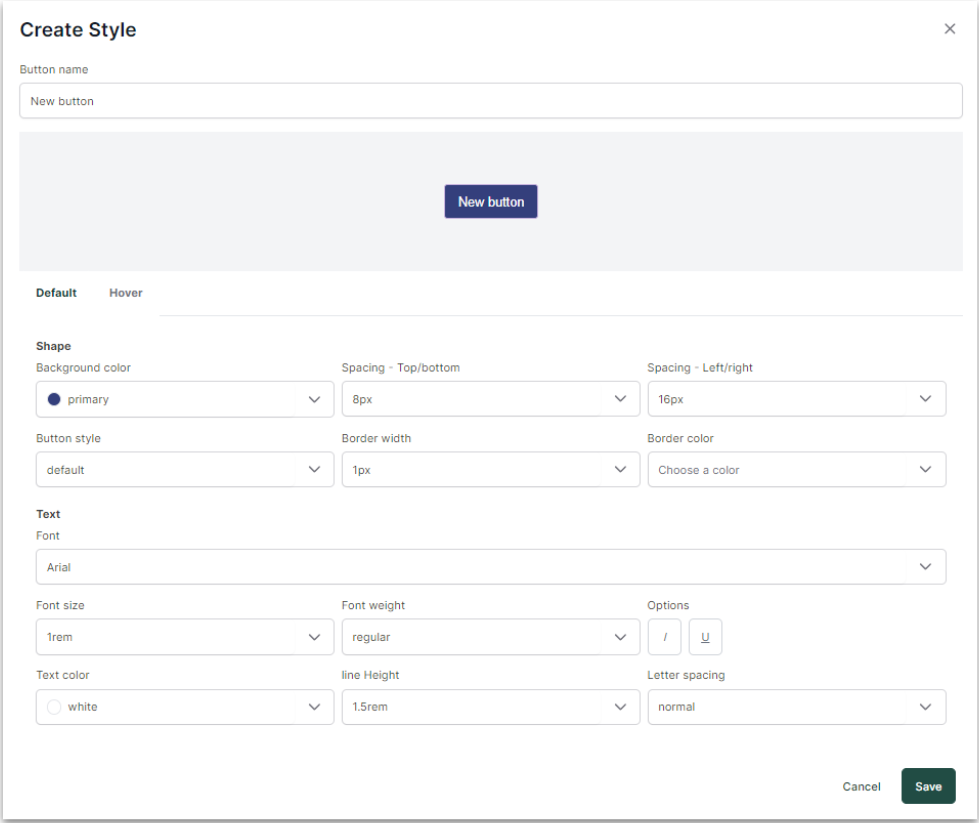
Default State
In the "Default" section, you can customize the following elements:
Shape:
-
Background color
-
Spacing (Top/Bottom)
-
Spacing (Left/Right)
-
Button style (rounded corners)
-
Border width
-
Border color
Text:
-
Font
-
Font size
-
Font weight
-
Options (Italic or Underline)
-
Text color
-
Line height (spacing between top and bottom lines)
-
Letter spacing
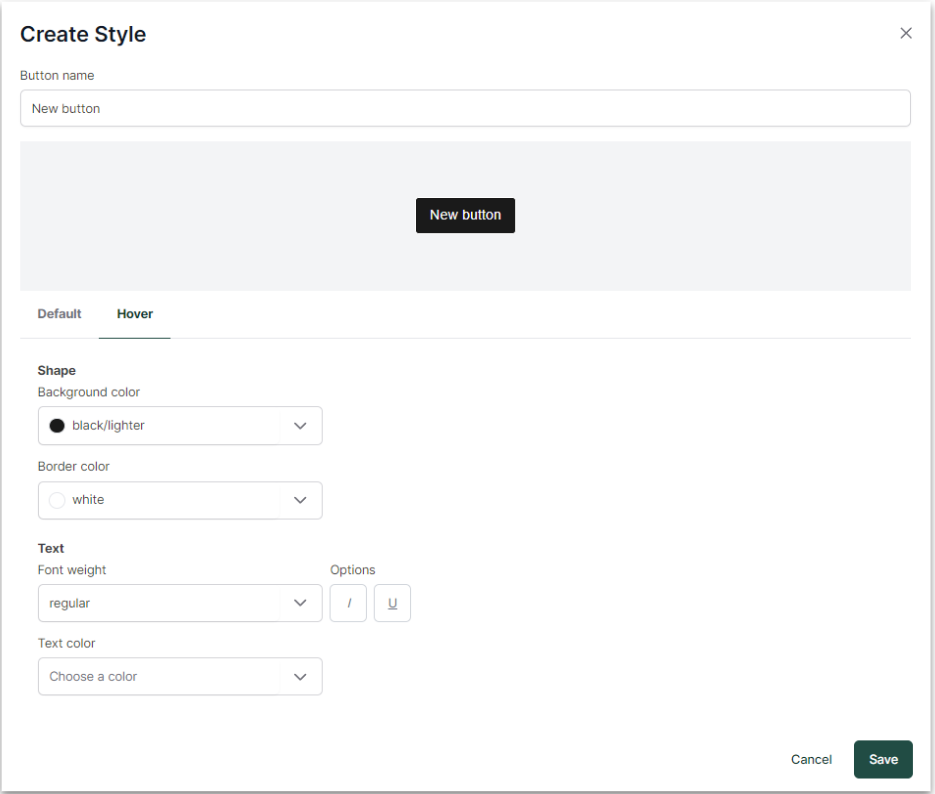
Hover State
When a user hovers over a button (moves the cursor over it) without clicking, the "Hover" state triggers a change in appearance.
Shape:
-
Background color
-
Border color
Text:
-
Font weight (Text thickness)
-
Options (Italic or Underline)
-
Text color
Good to know:
-
The colors and fonts available are those you have customized in the "Colors" and "Typography" tabs.
-
By default, the CMS offers a lighter and a darker version of each color you have customized.