
In this tab, you can add your brand's typefaces so you can easily select them when editing your pages and blocks.
It is important to set these up as soon as you create your site.
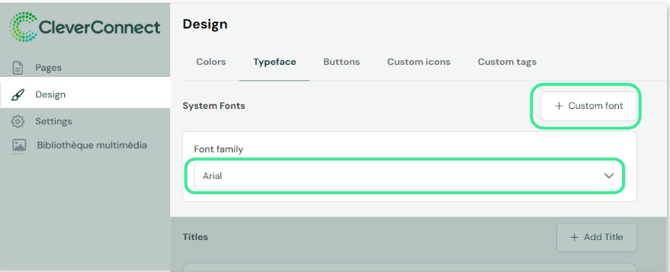
The CMS offers a list of fonts accessible via a drop-down menu, you can also add custom fonts.
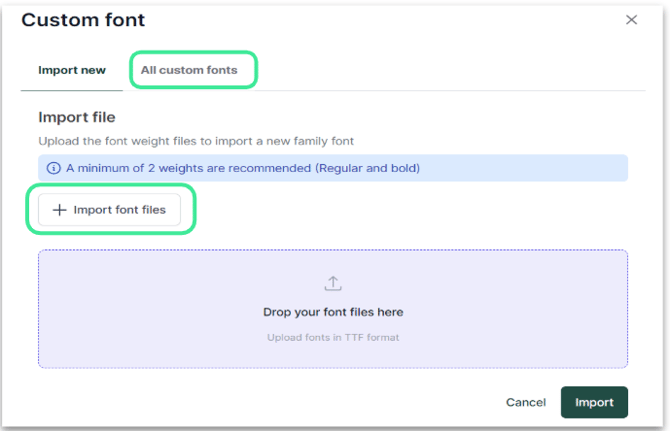
Simply import your font files in TTF format (a minimum of 2 weights is recommended: normal and bold).
Once imported, click on "All custom fonts" to see the list of your uploaded fonts.
Important: Changing a font will apply to all non-personalized titles and texts across your site.
When you want to add or modify a typeface, a control panel appears. You can configure two main elements: Titles and Texts.
TITLES
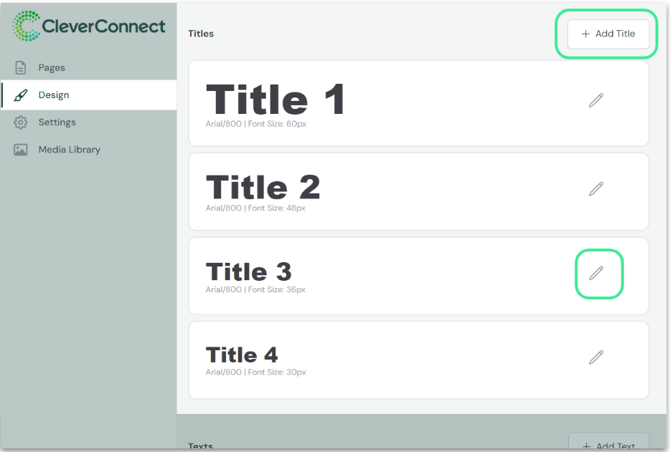
The CMS offers 4 default title formats using the same font. These names cannot be deleted or changed.
Important: Once you save changes to a title, system-wide font updates will no longer be automatically applied to those custom styles. You will need to modify your titles manually.
To modify an existing title or add a new one, click on "Add title" or the pencil icon. The following panel will appear, providing a style overview:
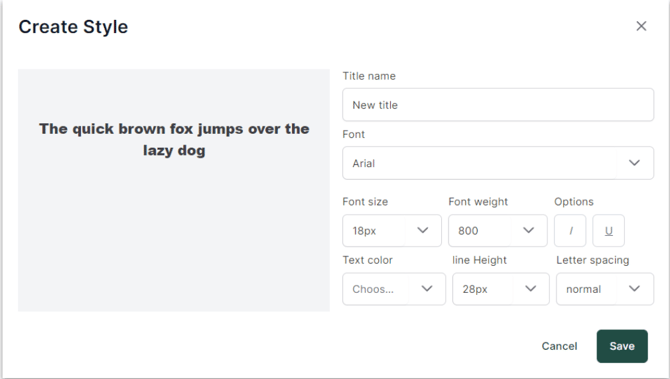
You can customize :
-
Title name
-
Font
-
Font size
-
Font weight
-
Options (Italic or Underline)
-
Text color
-
Line height (Spacing between top and bottom lines)
-
Letter spacing
Good to know :
The colors and fonts available are those you've customized in the "Colors" and "Typography" tabs.
TITLES
The CMS offers 5 default text formats using the same font. These names cannot be deleted or changed.
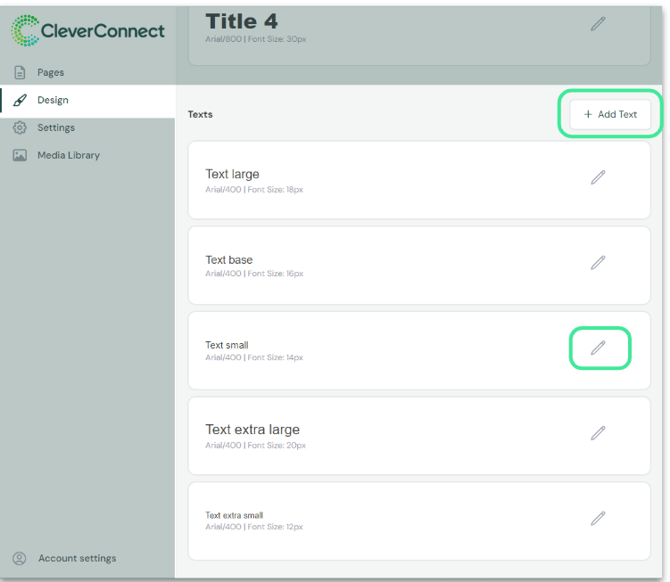
The CMS offers 5 default text formats in the same font. It is not possible to delete or change the name of these texts.
Important : once text modifications have been saved, the system font change will no longer be automatically applied to custom text styles. You will need to modify your title manually.
To modify or add text styles, click on "Add Text" or the pencil icon.
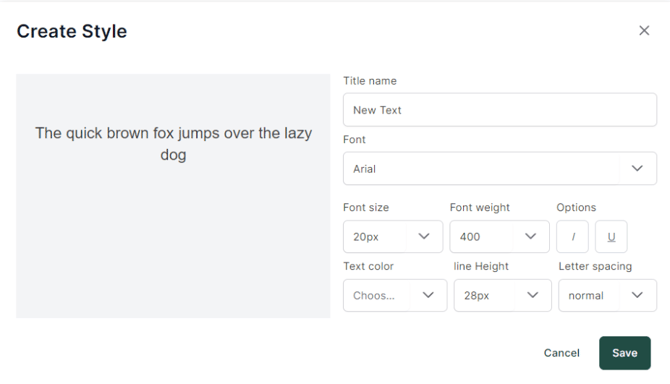
This panel allows you to customize:
- Title name
- Font
- Front size
- Front weight
- Options (Italic or Underline)
- Text color
- line Height (Spacing between top and bottom lines)
- Letter spacing
Good to know :
The colors and fonts available are those you have already customized in the "Colors" and "Typography" tabs.
By default, the CMS offers a lighter and a darker version of each color you have customized.