
Each page on your career site plays a specific role in the candidate journey. This guide helps you optimize these standard pages to maximize engagement and conversion.
1 - Home page
The first few seconds a candidate spends on your career site are crucial. To maximize conversion, it is imperative to capture their attention immediately.
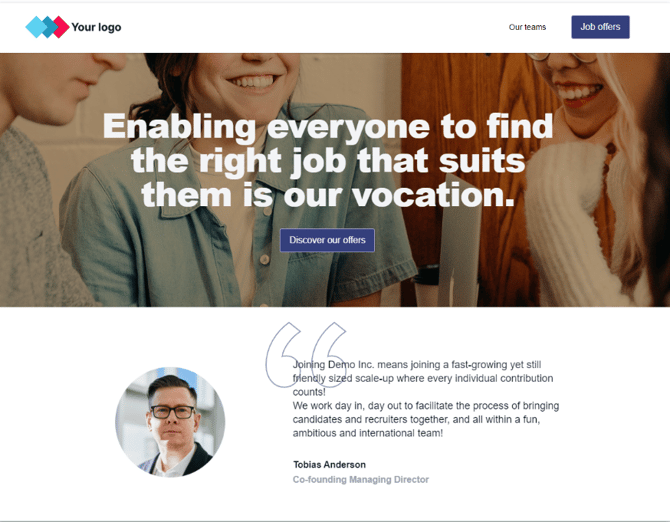
Our recommendations:
-
Simplify the design: Favor refined graphics and visuals that are consistent with your brand messaging.
-
Hero section: Introduce the page with a "Hero" zone containing a clear Call-to-Action (CTA) button to view job offers.
-
Manage content density: We recommend including between 3 and 10 blocks maximum per page.
-
Prioritize information: Display content in order of importance (primary content can redirect to dedicated sub-pages).
-
End with an action: Always conclude the page by inviting the candidate to explore another section or perform an action to keep them engaged.
2 - Job offers
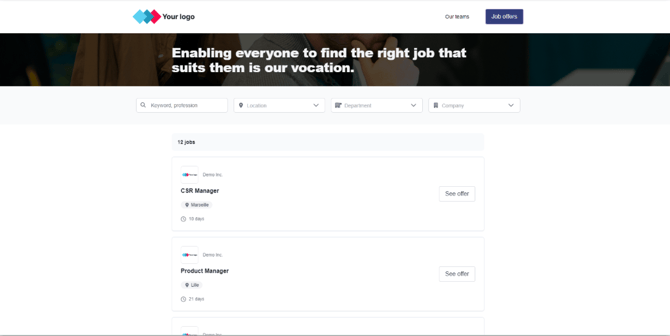
The job search page is the heart of your site. It should include:
-
A hero section with an engaging catchphrase.
-
A search bar.
-
The list of job offers.
-
Custom tags (maximum 4).
-
Publication date, logo, and buttons (if activated).
Note: You can integrate a spontaneous application form (Talentry) on another page to offer an alternative if no current vacancy matches the candidate's profile.
"Around me" Feature
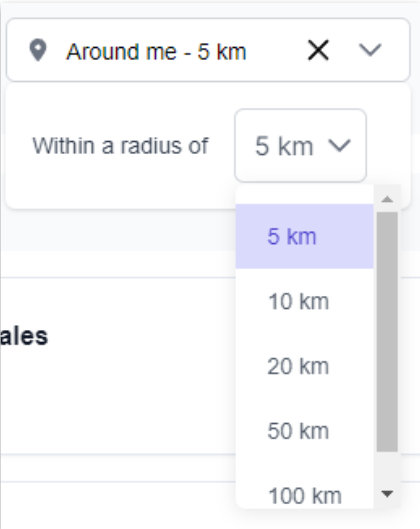
This feature allows candidates to geolocate themselves to find jobs nearby.
-
Availability: Available to all customers; must be activated by default across the site.
-
Where to find it: On the "Job offers" page and within the "Search bar" block, under the Location filter.
-
Technical aspects: The CMS uses the browser's geolocation. Candidates must accept the browser's tracking request.
-
Requirement: All job locations must have precise GPS coordinates (latitude/longitude). We recommend using specific cities rather than broad regions for better accuracy.
3 - Offer details
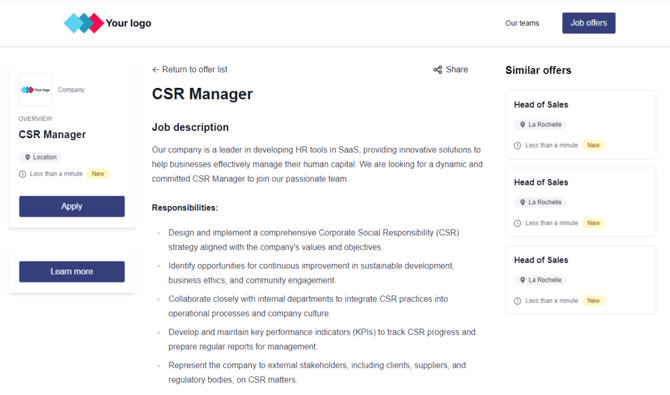
This page provides the specifics of a role and must include:
-
Offer title and description.
-
A social share button.
-
Two "Apply" buttons and an application form.
-
A "Similar offers" section.
-
A dynamic button and augmented content (images/videos) if activated.
Good to know: For multilingual sites, offers are translated into the current site's language (provided the translations are sent by your ATS).
Similar offers
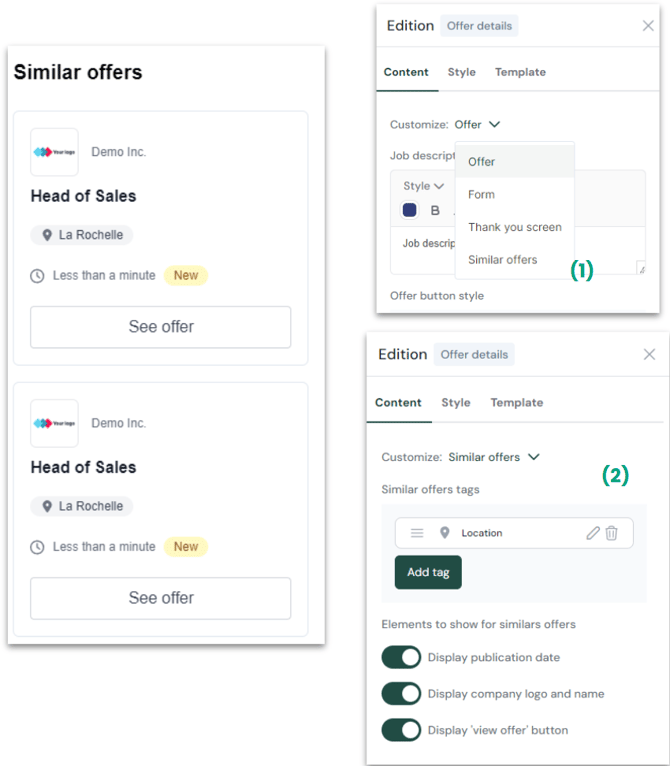
This automated section displays up to four relevant jobs based on Location and Department.
-
Logic: Jobs are sorted by the most recent modification date.
-
How to edit: Offer details page > Click the "Offer details" block (1) > Choose "Similar offers" (2) > Modify elements.
-
Note: This feature is automated and cannot be disabled or customized beyond basic styling.
Fast apply
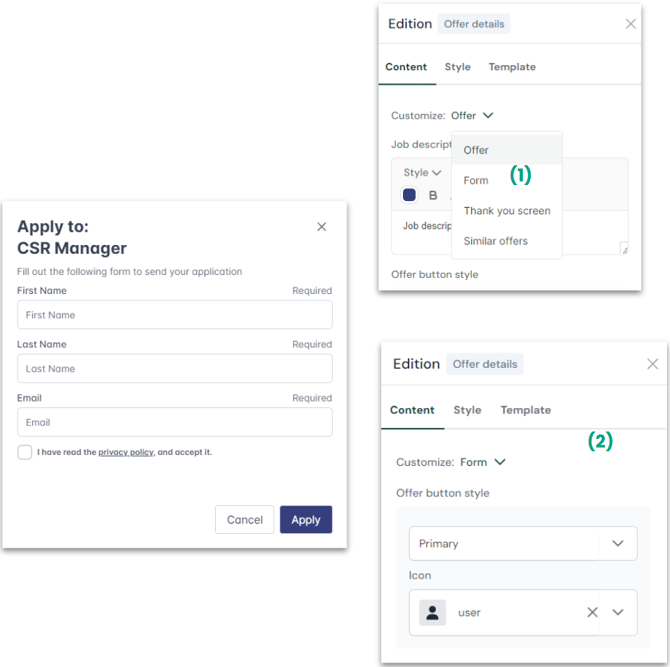
This feature streamlines the process by pre-filling forms using:
-
Information entered during a previous application.
-
Information parsed from a CV via candidate matching.
Technical aspect: Data is stored locally in the user's browser (IndexedDB). Contact CleverConnect to configure specific fields.
Social share
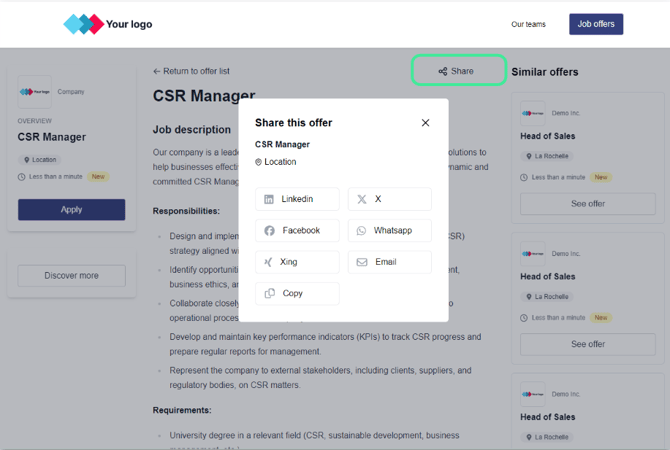
Candidates can share job offers via LinkedIn, X (Twitter), Facebook, Whatsapp, Xing, or Email. A "Copy Link" option is also available.
Dynamic buttons
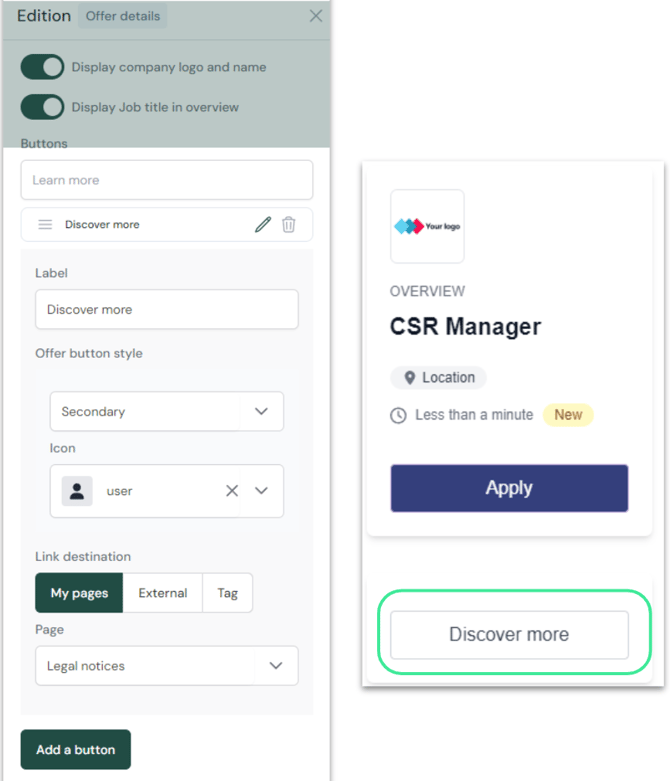
Create a personalized path for candidates by showing specific buttons that adapt to the job they are viewing.
Dynamic buttons automatically appear on job detail pages based on attributes like location, department, or contract type.
-
Where to find it: Offer details > Edition panel > Content tab.
-
How it works: These buttons link to your content pages. To function, your pages must be linked to tags (repositories) configured in the CRM by CleverConnect.
-
Flexibility: You can set up multiple dynamic buttons to guide candidates toward relevant additional information.
Augmented Offers
Enrich your job descriptions with dynamic media and content.
Improve candidate immersion by automatically adding videos or images tailored to the job's specific criteria.
Augmented offers allow you to inject specific blocks (images, videos, or text) into a job description based on automated rules.
-
Where to find it: Offer details > Add element > Dynamic zone.
-
Setup: To define a rule, select a block and use the "Logic" tab in the editing menu.
-
Customization: You can add multiple blocks above or below the main job text. The display is triggered by custom tags (department, location, etc.) imported from your ATS.

4 - Error 404 - Page not found
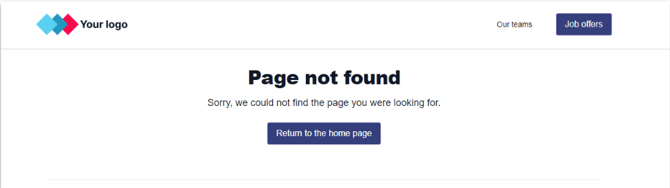
Users see this page if a URL does not exist.
-
Goal: Use this page to keep candidates on your site rather than letting them leave.
-
Recommendation: Always include a redirect URL (usually to the Home page) and consider adding "bounces" like links to your values or current job list.
5 - Legal texts
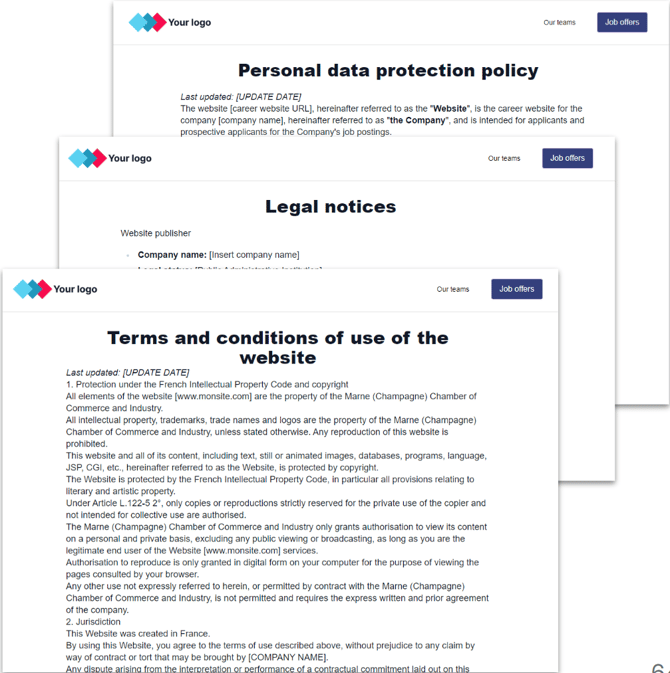
The CMS provides default templates for Legal Notices, Privacy Policy, and Terms of Use.
-
Important: These are examples only. You must adapt them and have them reviewed by your Data Protection Officer (DPO) or legal team.
6 - Header & Footer
These elements are identical across all pages of your site.
Header tips:

-
Limit to 7 entries maximum.
-
Use a button for the most important information (usually "Job Offers") and place it on the right.
-
Keep text concise (e.g., "Our teams" instead of "Meet our teams").
-
Use action verbs for buttons.
Footer tips:
-
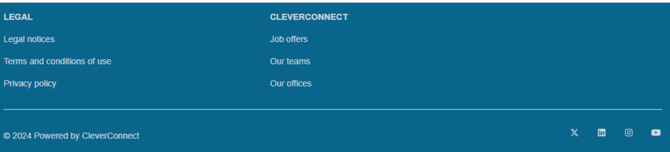
Must include links to all legal pages.
-
Use it for SEO "meshing" by linking to external content pages.
-
Include social media links (LinkedIn, Facebook, TikTok, etc.).